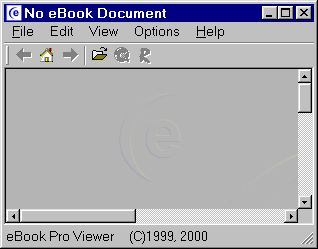
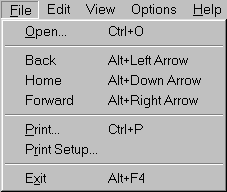
You can navigate
the eBook by using the buttons on the
toolbar, by using keyboard
commands to move back and
forward, and by selecting the specific
commands from the
"File" menu. Use whichever is easiest for you.
Print and Print Setup
These functions
are the same as in any other normal
"Windows-based" program. Select
"Print" to print your
document, or "Print Setup" to define your
printer settings.
NOTE: The "Print" command will be greyed
out if you have
not "Enabled" Printing in your eBook. See the
"Registration
Center" section for more information on how to use
this.
Exit
Select this
in order to "Exit" the program.
View
Menu Overview
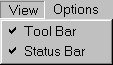
Tool Bar
Selecting this
option will Display/Hide the "Tool Bar"
which contains the navigation
and Print buttons.
Status Bar
Selecting this
option will Display/Hide the "Status Bar"
which contains helpful
context sensitive information..
Options
Menu Overview

Check for eBook Pro Viewer Updates
Now
Selecting this
option will force the viewer to check
for viewer
software updates
through
the internet.
If an update is found, you will have the option
to
install it.
Auto Update eBook Pro Viewer
Selecting this
option will give the viewer permission
to automatically check for viewer software updates
during viewer
use. This option is completely
invisible
unless an update is found. In that case,
you will have
the option of installing it..
Help
Menu Overview
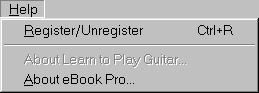
Register/Unregister
Select this
in order to Register or Unregister your
eBook Publication on the
current computer.
About this eBook
This option
will say "About <your eBook name>...".
If you
have
placed an "AdminBM.BMP" Bitmap file
in your HTML Root directory,
this menu option will
be active and users will be able to view this
bitmap
when this menu option is selected.
About eBook Pro
This will provide
information on the Internet Marketing
Center® and will explain
how you can get more
information about how to create secure documents.
Registering
an eBook
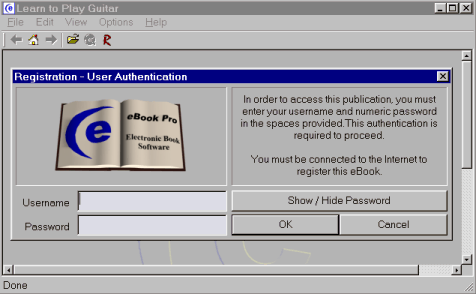
To begin viewing an eBook, the user must
enter an
activated username and password in the Registration
Login
box. You can bring up the Login box by
selecting "Register/Unregister" from the "Help"
menu, or by clicking anywhere inside the
viewer.
You must be connected to the Internet to register.
Unregistering
an eBook
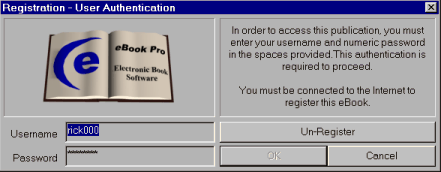
To unregister an eBook, the user must
select
"Register/Unregister"
from the "Help" menu, and
select "Unregister" from the
Registration Login box.
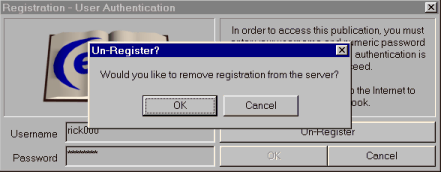
You will then
be asked if you want to remove your
Registration
from this computer.
If you select "Yes",
your registration will
be removed from
our database,
and the software will be set to "reregister the
next
time it is run.
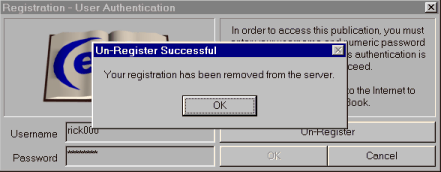
A dialog box will appear to confirm that
the registration
has
been removed from the server.
Please note that
to
unregister, you must be connected to the Internet.
eBook
Validation Checks
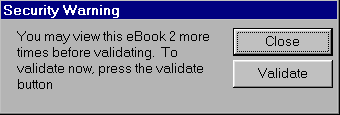
Periodically, the viewer will require
that you connect to the
Internet (if you are not already) so that
the eBook may
confirm that its registration is still valid.
When it is
nearing time for a check, a "Validation"
box will appear
upon initial startup of the viewer. To force
a check
and reset the time until the next check (this is useful if
you will be away from an Internet connection and wish
to use the viewer),
select "Validate" from the dialog box.
Demo Book Information
The
demo version
you have downloaded contains Corey Rudl's course, "Insiders Secrets to Marketing Your Business on the Internet". This demonstration version has been designed to show you the functionality and ease of use which the end user will experience when
you view
E-books
published using this system.
Once downloaded, please
follow these instructions to run the software:
- Go to the directory to
which you downloaded the software. (We always recommend downloading programs to
your Windows "Desktop" because this makes it much easier to find.)
- Once you are there, double-click
on "ebookdemo.exe" and install the eBook software on your computer.
- Before we explain how to
use the software, please triple check that you are connected to the Internet.
Our initial registration procedure will not work unless you have a live connection
online. Once you are connected to the Internet, move on to the next step.
- Now you will want to run
the eBook software - there are two ways you can do this:
a) Click on the "Start" menu, select "Programs", then select "Internet Marketing
Center", and finally click on "eBook Pro - Demo eBook".
b) You can also access the eBook from your "Desktop". Simply minimize all of your
programs and double-click on the "eBook Pro - Demo eBook" icon located on your
desktop.
- You will now want to register
your eBook software. You can do this by clicking on either of the links located
on the index page, or you can click on "Help". To register you simply enter the
Username and Password listed above.
- That's it! You have a working
piece of software that was created with our eBook Pro software. Go through the
program and play - that's what it's for!
Note:
This demonstration version is limited to the "Table of Contents"
and the "Introduction Letter". For more information about the
course "Insiders Secrets to Marketing Your Business on the Internet"
please go to:
http://www.marketingtips.com/tipsltr.html
Page Last
Updated: March 15,2009